How to Enable/Disable SMS Authentication [WEB, APP]

You can enable/disable the phone number you use for two-factor authentication (2FA) if you cannot receive SMS verification codes. In order to protect your account, withdrawals transactions will be disabled for 24 hours after changing your phone number. Please follow the steps below.
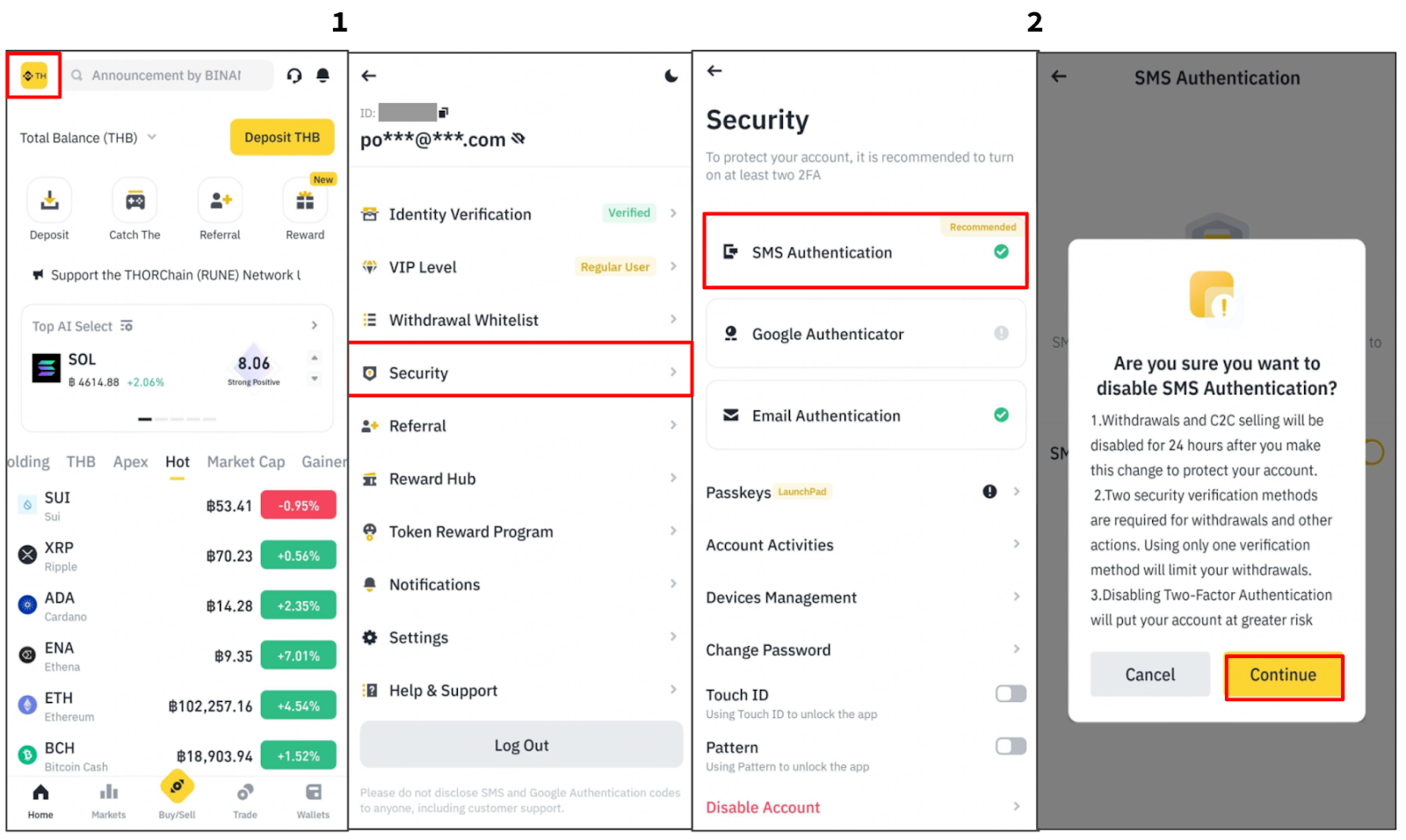
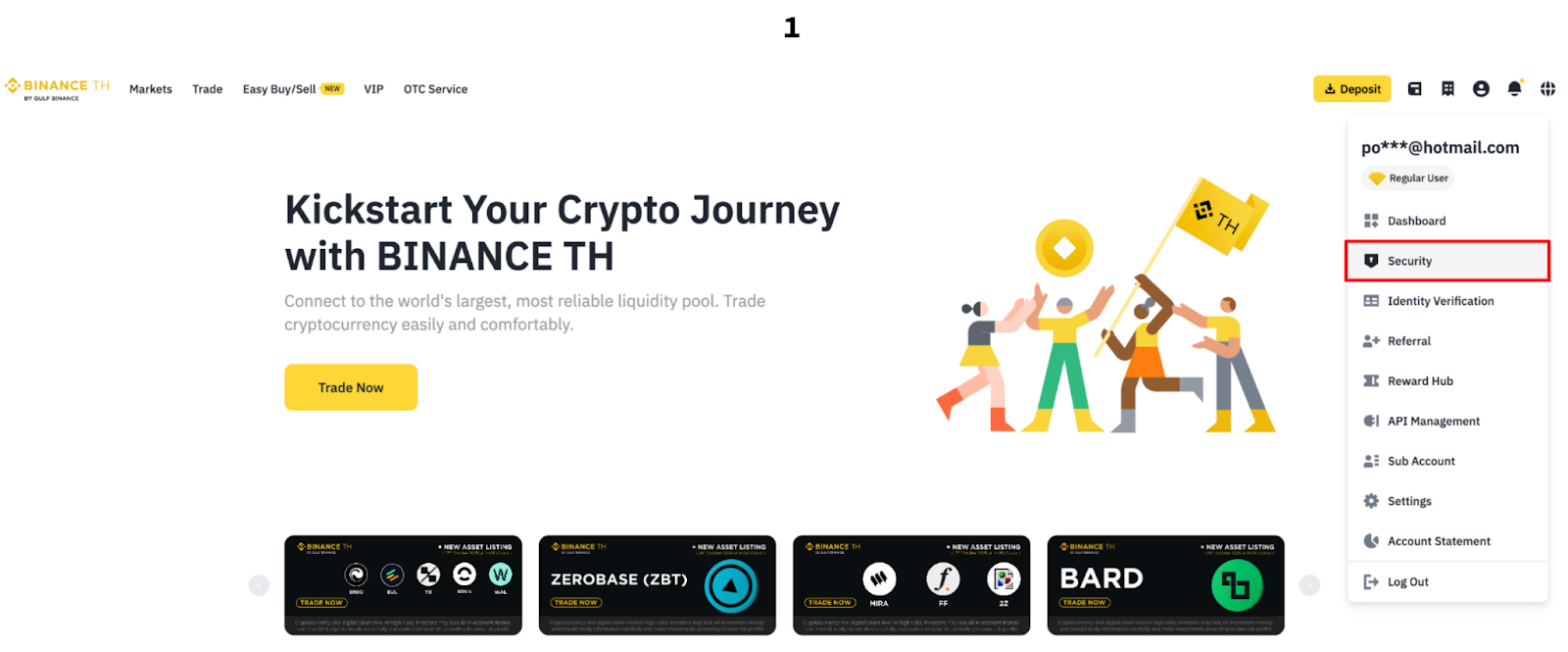
1. Log in to your BINANCE TH account and go to [Profile] - [Security].
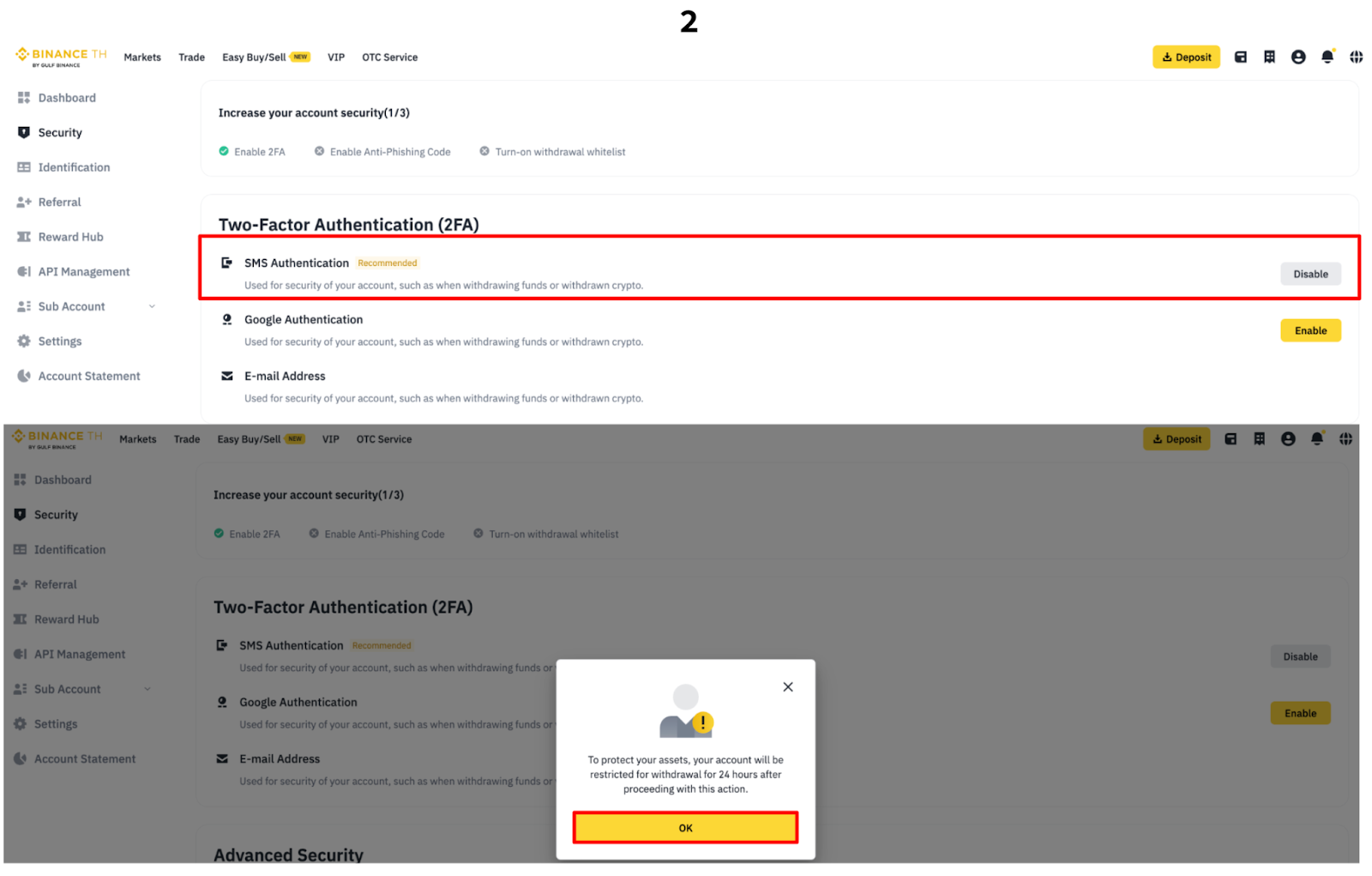
2. On Website - Click [Disable] next to [SMS Authentication]. On Application - Choose [SMS Authentication] and toggle it off. Read the notes carefully before clicking [Continue]. Please note that withdrawal transactions will be disabled for 24 hours after changing your authenticator.
Note: In the application, if you want to enable SMS authentication, please turn on the toggle.
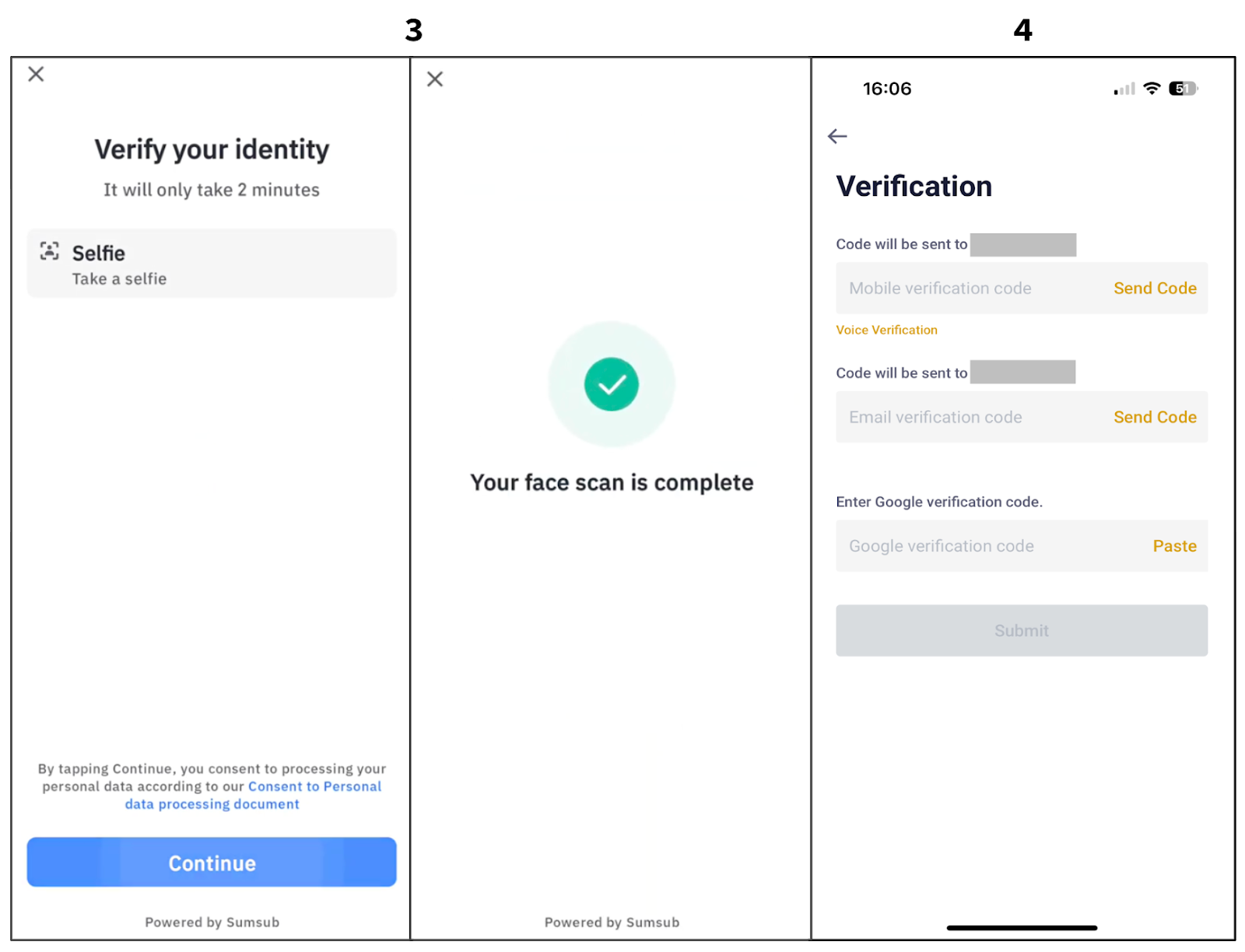
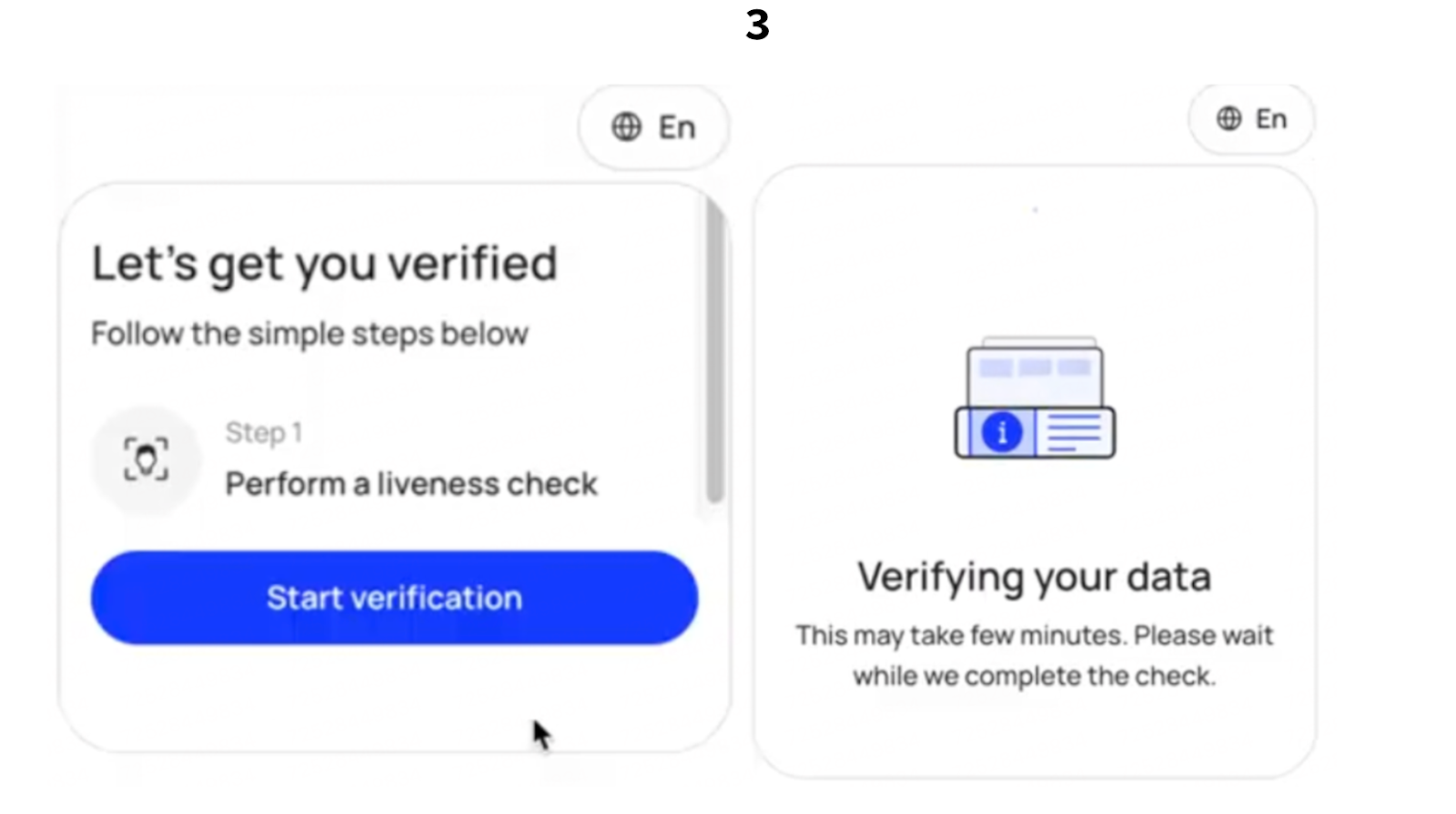
3. Complete identity verification by submitting a liveness selfie.
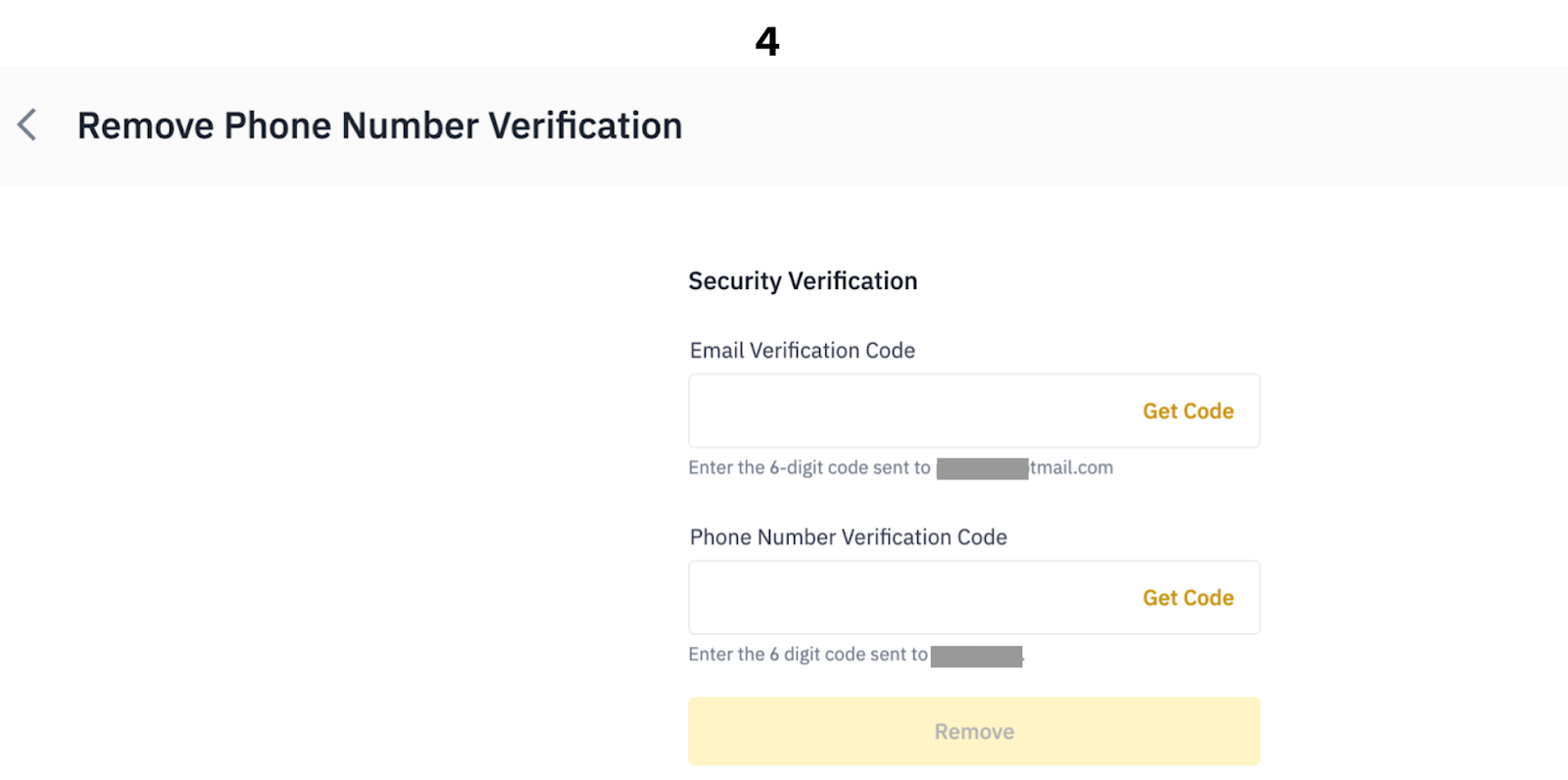
4. Click [Get Code] for each verification method you choose to enable, then enter the 6-digit verification code received and click [Remove] to confirm security. For activation, you will be prompted to enter the 6-digit verification code in the same manner to confirm security.
5. The SMS authentication system has been successfully disabled. For the security of your account, you are required to use at least two methods of authentication in order to withdraw assets or perform other transactions. If you wish to enable Google Authentication, you can follow the setup instructions here.
Note:
For security reasons, withdrawal will be disabled for 24 hours after making this change to your account.
You can choose to complete the face scan verification on your mobile device or on the website. To do the face scan on your phone, click ‘Continue on phone’ and then scan the QR code to proceed with the face scan.
On Website
On Application